
April 19, 2026
Why Your Alarm.com Camera Keeps Going Offline (And How to Fix It)
Your camera was working fine for months. Then one morning the Alarm.com app says it is offline. You open the live view and get a spinner. You reboot the router and it comes back; next week it is offline again. If that pattern sounds familiar, you are not alone, and the good news is that the list of things that actually cause it is short and well-understood. This article walks through what is really happening, what to look at first, and where to find the full step-by-step fix.
An Alarm.com camera going “offline” means it has stopped checking in with the Alarm.com cloud. After about five minutes of no contact, a Video Troubleshooting Wizard appears on the camera in the app; after eight to sixteen hours, a “Video Device Not Responding” trouble condition posts on your account. If you need the full ordered fix right now, we maintain the complete walkthrough on the support forum: the full Alarm.com camera offline troubleshooting guide. The rest of this article is the context, so that when you work through the steps, you understand why each one matters.
The Real Reasons Cameras Drop Offline
A Wi-Fi camera offline problem almost always comes down to one of four things: signal, bandwidth, a network change, or a long tail of edge cases. That is true on every Wi-Fi camera platform on the market, not just Alarm.com. What differs is how much visibility you get into which one it is.
Signal is the most common culprit. A camera works beautifully during setup on the kitchen counter five feet from the router, then you mount it on the back of the garage and it starts dropping every evening. The camera did not change; its position changed, along with the concrete, metal flashing, and drywall between it and the access point. Outdoor cameras are worse because they sit on the exterior side of a wall, with signal passing through the wall twice. If a camera holds together for a while and then starts dropping, a new factor (a neighbor’s Wi-Fi on the same channel, a new microwave, a bigger set of devices on your network) has usually pushed signal quality over the edge.
Bandwidth is next. Alarm.com recommends roughly 2 Mbps of upload per camera for reliable streaming, more at higher resolutions. A household with four cameras, a few TVs streaming, and a teenager on a video call can saturate a typical residential upload channel, and cameras start dropping during peak hours. The tell is that multiple cameras drop together, not just one.
A third cause is a network change. If you switched ISPs, swapped the router, or changed the Wi-Fi password last weekend, the camera still has the old credentials saved and cannot reconnect on its own. This is the easiest to fix and the easiest to miss: people forget that the Wi-Fi change last Tuesday is what caused the camera problem this Thursday.
The long tail is where edge cases live: router MAC filtering, firewall rules blocking ports Alarm.com uses, old 802.11b/g-only routers, range extenders placed near the router instead of near the camera. None are common, but any can cause a camera to drop. The forum guide covers each.
What Alarm.com Shows You That Consumer Cameras Don’t
Here is where Alarm.com earns its professional-grade reputation on this particular problem. Most consumer cameras show a current signal reading of some kind; what is harder to find outside professional platforms is the combination of a daily history, a real-time cloud-based connectivity test, and a model-specific troubleshooting wizard. Alarm.com gives you all three.
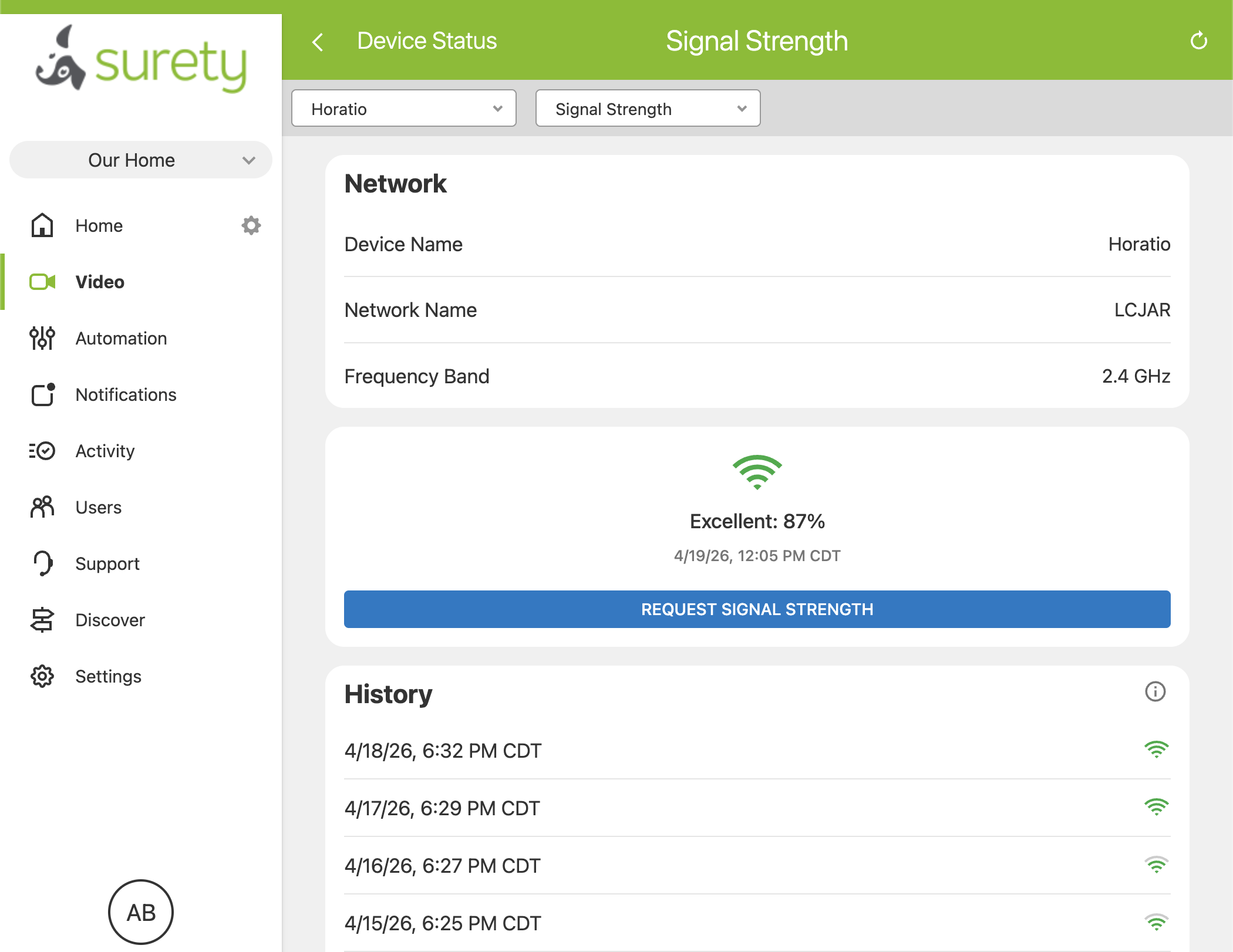
Every camera has a Signal Strength section inside its settings in the Alarm.com app and website. The current reading is shown as a percentage along with a plain-English rating: Excellent, Good, or Poor. The rule of thumb is simple: you want every camera to read Excellent, or at minimum Good. Anything sitting in Poor is where offline problems come from. Below the current reading is a daily history that shows past signal as 1 to 4 bars per day, colored green for Excellent or Good and red for Poor. A mostly-green history means a healthy camera over time; a stretch of red means the signal has been Poor for a run of days, which is where persistent offline issues come from. The history is also how you confirm that a fix actually worked: move a mesh node or relocate the router today, and tomorrow’s reading shows up in the history. No dBm charts, no signal-to-noise math, nothing you need a networking certification to read. Many consumer cameras show a current signal reading, but the combination of a daily history view like this, a cloud-based connectivity test, and a model-specific troubleshooting wizard is uncommon outside professional platforms.
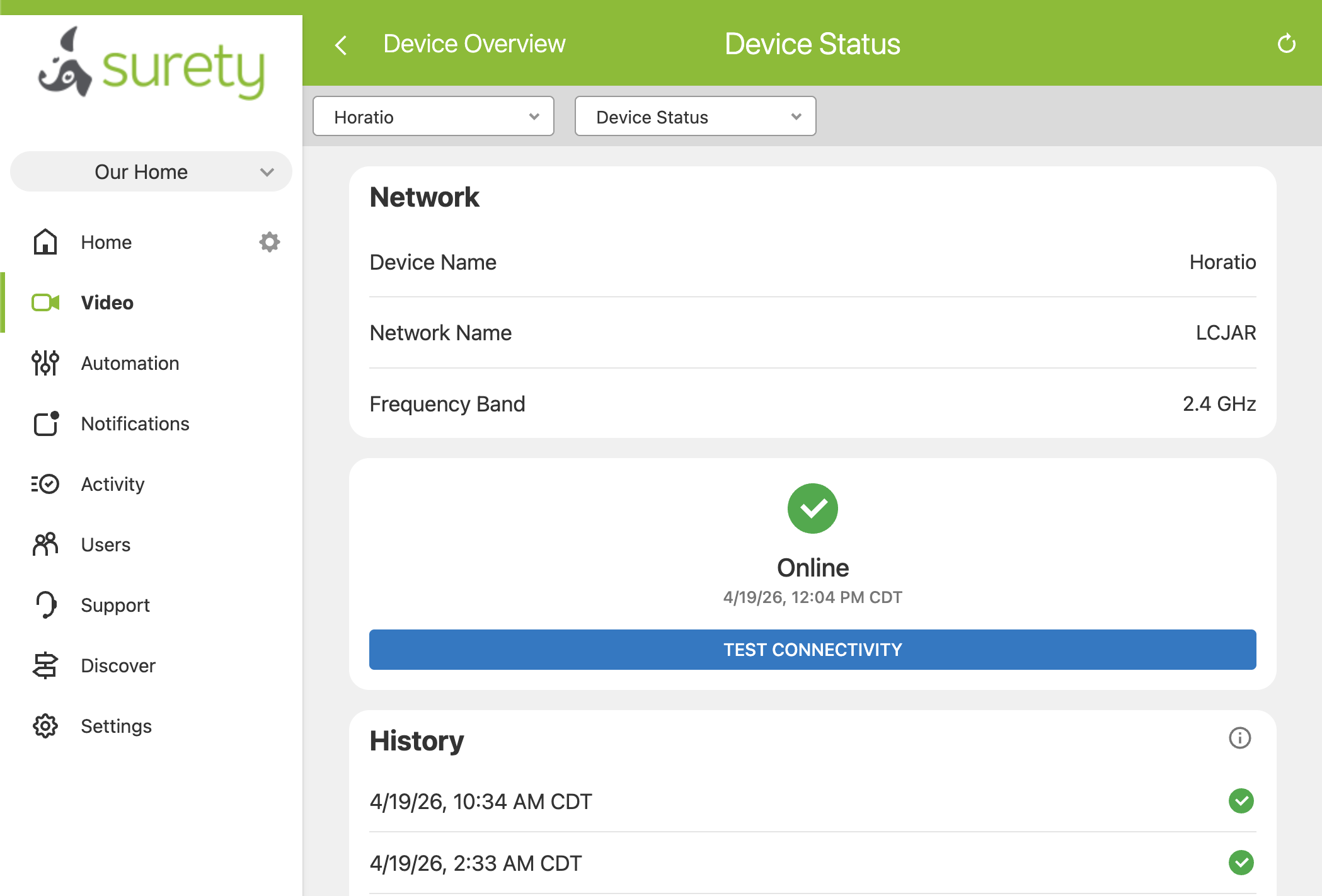
Alongside Signal Strength, each camera’s network settings also include a Device Status section with a Test Connectivity button. Test Connectivity is not a speed test; it pings the camera from the Alarm.com cloud to confirm right now, in real time, whether the camera is actually reachable. It is the fastest way to tell whether your reboot, cable swap, or router restart actually fixed anything, without waiting for the app to catch up.
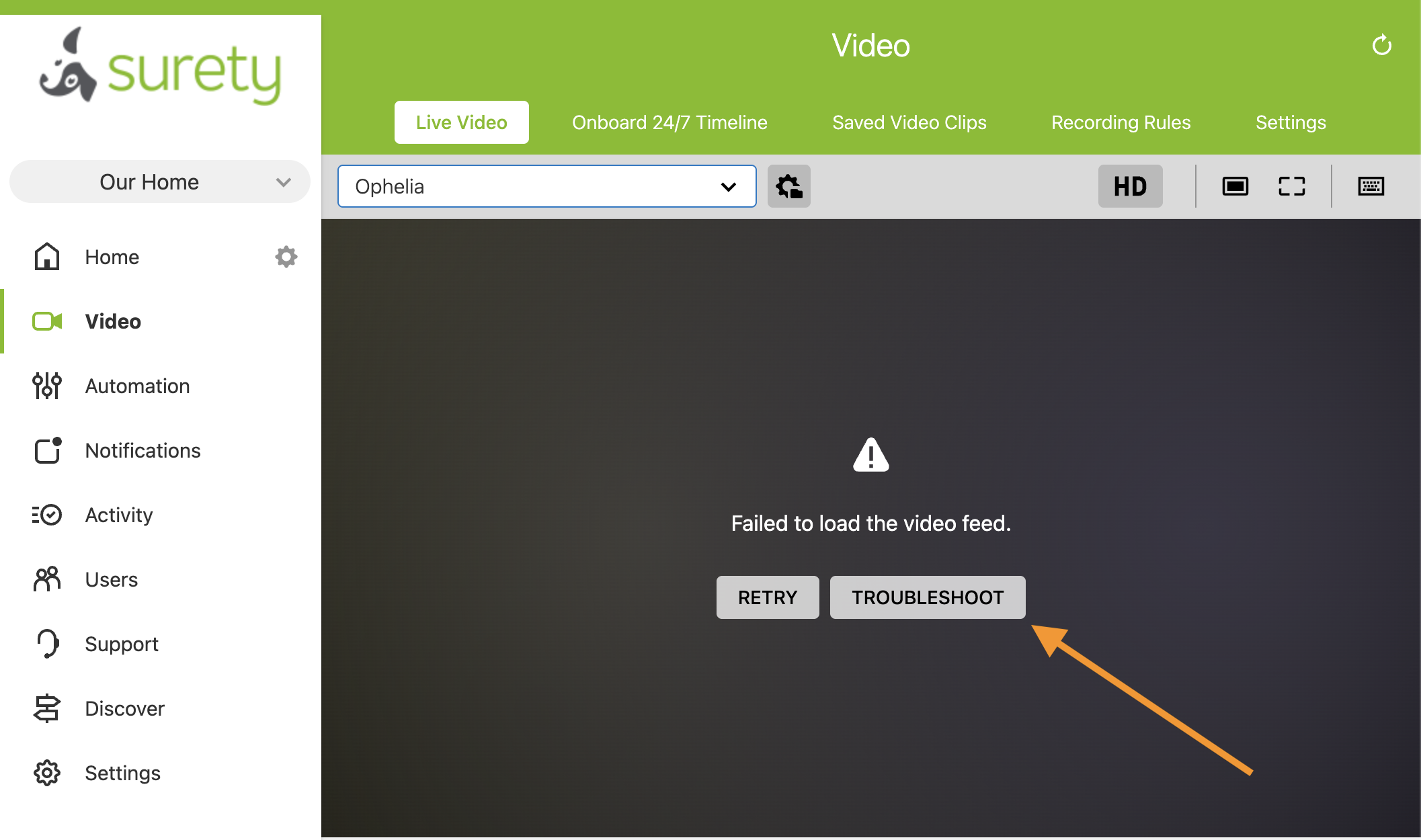
On top of that, the Video Troubleshooting Wizard appears in both the app and on the website once a camera has been offline for five minutes or more. It identifies your camera model, attempts a reconnection, and gives model-specific advice. For bandwidth questions, a standard speed test on a phone or laptop at the camera’s actual location (fast.com or speedtest.net) tells you what you need to know.
The Short Fix Path
When your Alarm.com camera keeps going offline, the high-level fix path looks like this:
- Check the Signal Strength section in the camera’s settings. Aim for Excellent or Good; Poor is where offline problems come from.
- Run the Video Troubleshooting Wizard if it is available.
- Reboot the camera, then the router, in that order.
- If the network recently changed, reconnect the camera’s Wi-Fi credentials from the Alarm.com website.
- If signal is weak, move a mesh node or extender closer to the camera (not closer to the router).
- Factory reset and re-add the camera if the earlier steps have not solved it.
Each line hides specifics worth knowing: the five-foot rule during reconnection, the cable-swap diagnostic for PoE cameras, Bluetooth-based recovery on compatible cameras, and edge cases like MAC filtering, firewall rules, or old routers. All of that detail lives in the full troubleshooting guide on the Surety support forum. Bookmark it.
And you never have to work through this list on your own. Surety Support is here whenever you want help, at any step along the way. Ask on the support site or email us at suretyhome.com/support, 7 days a week, whether you have tried none of the steps above, some of them, or all of them, and we will pick it up from wherever you are.
When a Wired Camera Is the Real Answer
If you have worked through the fix path more than once on the same camera, the permanent answer is usually not more Wi-Fi troubleshooting. It is wired. In the current Alarm.com lineup, the PoE (Power over Ethernet) cameras are the ADC-VC730P outdoor spotlight, the ADC-VC729P PoE++ floodlight, and the ADC-VDB755P PoE video doorbell and intercom. All three use a single Ethernet cable for power and data, and because they bypass Wi-Fi entirely, they do not suffer from signal issues, channel congestion, or the neighbor’s new wireless printer.
The ADC-VC729P is the floodlight camera we recommend for exactly this reason: it is Ethernet-powered, so it does not suffer the Wi-Fi connectivity problems that are the subject of this article. One detail worth knowing if you are planning the install: the VC729P requires PoE++ (802.3bt), not standard PoE, because floodlight LEDs draw more power than a typical camera. The V729 line also has AC-powered (ADC-V729AC, the most common) and DC-powered (ADC-V729) variants that use Wi-Fi, but only the VC729P is PoE.
The VDB755P may be the right answer for anyone tired of fighting with a Wi-Fi doorbell, which is the hardest-working camera on the network by definition. The full current lineup is at the Surety Store.
The Bottom Line
Cameras going offline is one of the most common complaints on every Wi-Fi camera platform, not just Alarm.com, and the causes are almost always fixable with placement, network, or a move to wired communication. The difference with Surety Home and Alarm.com is that you have the diagnostic tools to know why, and direct-to-technician support that is here whenever you want it, at any step along the way. For the full walkthrough with exact steps in order, start here: How To Troubleshoot Alarm.com Cameras Going Offline on the Surety support forum.
If you are shopping for an Alarm.com provider, you can activate service online in about 5 minutes at Surety Home. Month-to-month, no contract, no cancellation fees, and the full professional-grade Alarm.com platform, including every diagnostic described above.
